
You create an import file using a text editor (such as WordPad) or Excel. We recommend using comma-delimited (.CSV) files which can be created with Excel spreadsheet files.
Information to Include in the Import File
Each row (in a text file) or each column (in an Excel file) corresponds to a field within Service Management. You need to know the individual field definitions and storage type definitions for each field in Service Management files related to service calls. See Service Call Master File for information on these fields.
Import File Guidelines
See Import file guidelines for information on import file guidelines.
Sample Import File
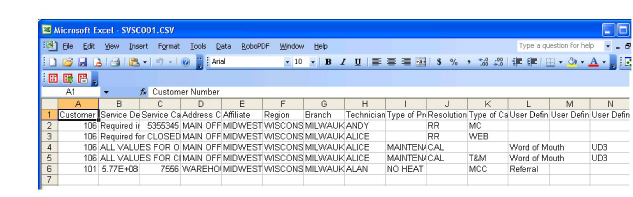
Below is a sample import file that was created as a spreadsheet. The first row of the import file is reserved for header information and is not imported.
Name and Location of the Import File
-
The name of the import file must correspond to the type of data being imported. See File Maintenance Utilities for a list of names.
-
The file must be placed in the location that was set up in the Import Setup Options window. See Setting up the import utility for more information.