
Subcontractor reports relate to subcontractors used on jobs. Reports include Vendor Activity, Subcontractor Status, Subcontractor Detail, Subcontractor Retention, and Insurance Expired, Subcontractor Cost Codes, and Subcontractor Summary Status reports.
Vendor Activity Report
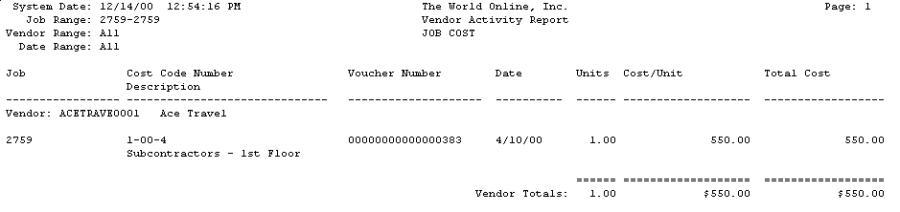
The Vendor Activity report contains a list of vouchers entered for a job, sorted by vendor. The report also includes total units purchased, the cost-per-unit, and the total cost for each vendor.
-
Choose Reports > Job Cost > Subcontractor Reports > Vendor Activity.
-
Use the Ranges drop-down list to select a range type.
-
Use the From and To lookup buttons to select the print range. Choose Insert >>.
-
Choose Print.
Subcontractor Status Report
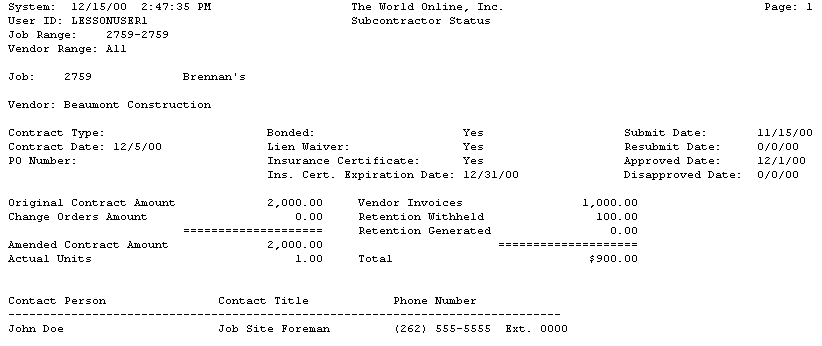
The Subcontractor Status report contains the jobs, contract information, contract amounts, insurance information, and invoice amounts for each subcontractor.
-
Choose Reports > Job Cost > Subcontractor Reports > Subcontractor Status.
-
Use the Ranges drop-down list to select a range type.
-
Use the From and To lookup buttons to select the print range. Choose Insert >>.
-
Choose Print.
Subcontractor Detail Report
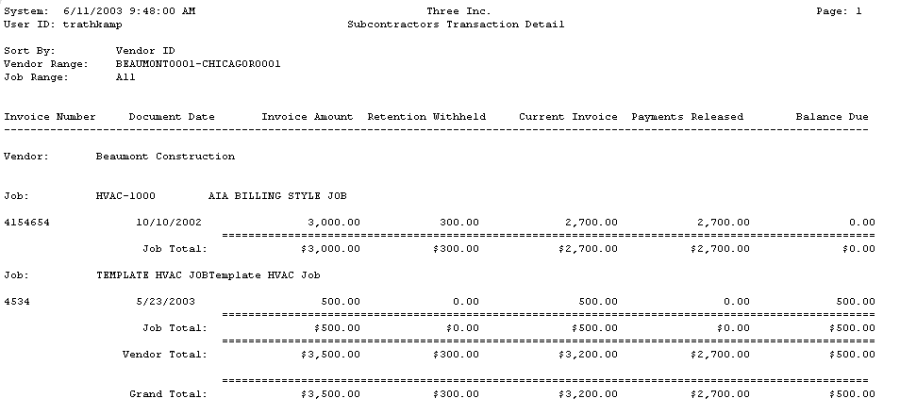
The Subcontractor Detail report contains jobs, contract amount, and invoice detail for each subcontractor.
-
Choose Reports > Job Cost > Subcontractor Reports > Subcontractor Detail.
-
Use the Sort By drop-down to select the sorting method. You can sort by vendor ID or job number.
-
Use the Ranges drop-down list to select a range type.
-
Use the From and To lookup buttons to select the print range. Choose Insert >>.
-
Choose Print.
Subcontractor Retention Report
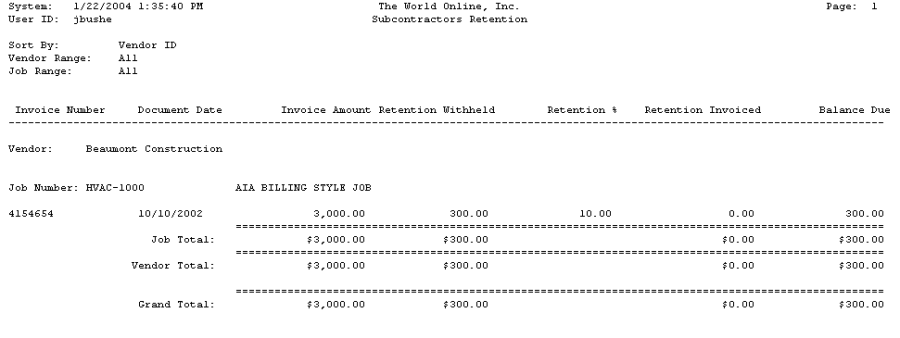
The Subcontractor Retention report contains jobs, contract amounts, and retention information for each subcontractor.
-
Choose Reports > Job Cost > Subcontractor Reports > Subcontractor Retention.
-
Use the Sort By drop-down to select the sorting method. You can sort by vendor ID or job number.
-
Use the Ranges drop-down list to select a range type.
-
Use the From and To lookup buttons to select the print range. Choose Insert >>.
-
Choose Print.
Insurance Expired Report
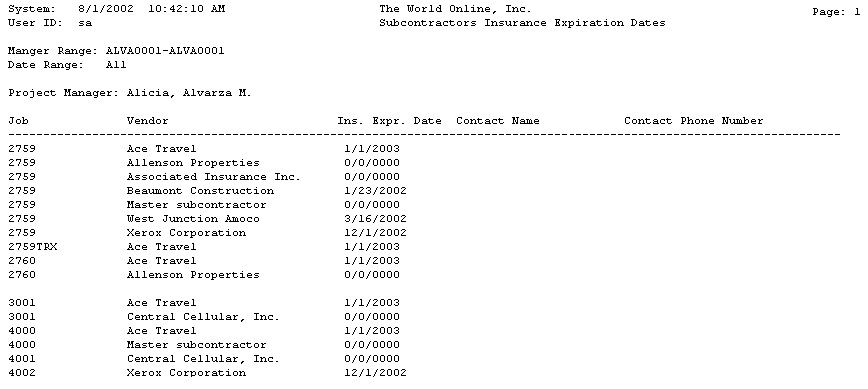
The Insurance Expired report contains insurance and expiration date information for each vendor.
-
Choose Reports > Job Cost > Subcontractor Reports > Insurance Expired.
-
Use the Ranges drop-down list to select a range type.
-
Use the From and To lookup buttons to select the print range. Choose Insert >>.
-
Choose Print.
Subcontractor Cost Codes Report
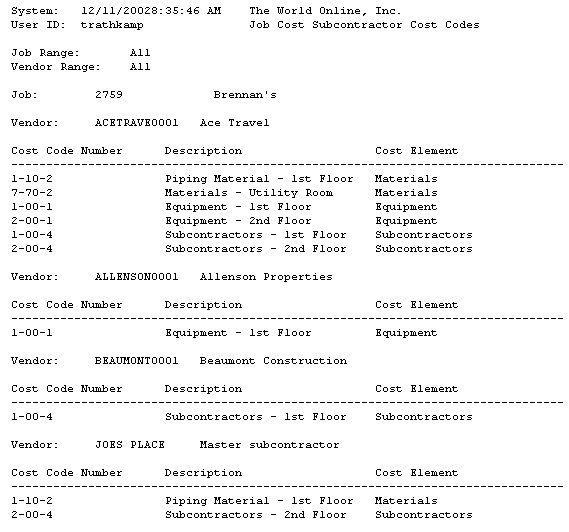
The Subcontractor Cost Codes report contains a list of cost codes assigned to each vendor. The report is sorted by job, then vendor.
-
Choose Reports > Job Cost > Subcontractor Reports > Subcontractor Cost Codes.
-
Use the Ranges drop-down list to select a range type.
-
Use the From and To lookup buttons to select the print range. Choose Insert >>.
-
Choose Print.
Subcontractor Summary Status Report
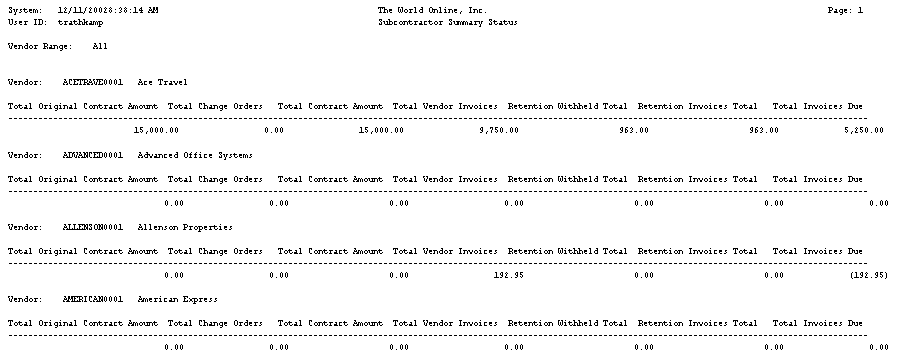
The Subcontractor Summary Status report summarizes contract information for all jobs for which the subcontractor is being used.
-
Choose Reports > Job Cost > Subcontractor Reports > Subcontractor Summary Status.
-
Use the Ranges drop-down list to select a range type.
-
Use the From and To lookup buttons to select the print range. Choose Insert >>.
-
Choose Print.
UK CIS Subcontractor Reports
For information on printing reports for UK CIS subcontractors, see the Advanced Subcontractor feature chapter in the Job Cost manual.
Subcontractor Claims Report
This report displays the cost code description, total amount of the payment claim and the scheduled amount. This report reflects all cost codes for each job as well as the comments entered in the Reason Note field of the Contract Claimed Amounts window. The report creates a separate page for each job.
Subcontractor Supplemental Report
This report provides for all the required Building and Construction Industry Security of Payment (Supporting Statement) Regulation 2014 supporting statement information.