
You can assign a time zone for several records within Service Management. We have provided a special Update Time Zone Data utility to make entering time zones easier. But first, you must manually enter a time zone in at least one record, at the highest point of the record hierarchy you choose. This utility assumes the following general record hierarchy:
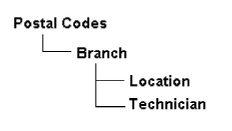
If you do not use postal code assignments, you can start at the branch level. Therefore, before you run the utility, you should assign a time zone to the branch(s) so that the utility knows where to get the time zone necessary to populate the time zones for the other records. If you do not use branches, you start at the location level, again, assigning a time zone to the location.
Assigning time zones based on whether global filters are used
The Update Time Zone Data utility can only be used if you are using global filters.
If you are using global filters:
-
Assign time zones manually to your branches in Branch Setup (Microsoft Dynamics GP > Tools > Setup > Service Management > Lookup Setup > Branches.) - OR - If based on postal codes, run the Update Branch Time Zone from Postal Codes part of the utility.
-
Either run the Update Time Zone Data utility to update time zones for locations and technicians - OR - assign the time zones manually for each of those records.
If you are not using global filters:
You MUST assign time zone manually in all the records, including branches, locations and technicians.
You cannot use the Update Time Zone Data utility if you are not using global filters.
Update Time Zone Data utility
Using the Update Time Zone Data utility, you can:
-
Update branch time zone values with postal code time zone values (only if postal codes are used).
-
Update location time zone values with branch time zone values.
-
Update technician time zone values with branch time zone values.
-
Update service data (service calls, appointments, and time stamps) time zone values to GMT.
-
Update appointment views, which will be based on the location/technician combination.
If you want to update branch times zones based on postal codes time zone, you must first mark the Use Postal Code Assignment checkbox in the Service Options window.
-
Choose Microsoft Dynamics GP > Tools > Utilities > Service Management > Update Time Zone Data.
You must be logged in as "sa" to run this utility.
-
Mark the appropriate checkboxes for time zone fields you want to update.
-
Choose Update. If the update was successful, a message box appears. When you click OK, the Print Destination window, which allows you to print a report displaying which records were updated.
Time Zone values - How the windows are populated
After running the Update Time Zone Data utility to populate the postal codes, branch, location, and technician records, the time zones for additional Service records populate accordingly. For some windows, time zones must be assigned manually from a lookup.
|
Window name: |
How the Time Zone field populates: |
|---|---|
|
Service Class Setup |
Select a time zone from lookup; this field does not fill automatically. |
|
Customer Maintenance |
Fills automatically based on the time zone of the service class. If no time zone is specified for the service class, the time zone fills based on the branch associated with the customer's location. |
|
User Profile |
Select a time zone from lookup; this field does not fill automatically. |
|
Branch Setup |
Does not fill automatically unless you run the Update Branch Time Zone from Postal Codes part of the Update Time Zone Data utility; otherwise, you must select a time zone. You can only select a branch if global filter record editing is enabled in the User Profile window for the current user.
|
|
Location |
Fills automatically based on the branch if the Use Global Record Identification option is marked on the Service Options window. If branches are not used or if the conditions above are not met, the time zone fills based on the service class. |
|
Technician Setup |
Fills automatically based the branch associated with this technician. If branches are not used, select a time zone from lookup. |
|
Dispatch Board |
Fills based on the time zone of the user who is bringing up the dispatch board. If you change the time zone view to location or technician, for example, the date you entered might change based on the conversion to the location's or technician's time zone.
|
|
Technician Board |
Fills based on the technician selected. If you change the time zone view to location, for example, the date you entered might change based on the conversion to the location's time zone.
|
If you change a branch after the time zone feature has been enabled, you must manually change the technician and/or location time zone.