
See PDF Downloads for a downloadable version.
Release Version: 2025.0.50
Release Date: September 2025
General
|
Case # |
New Feature |
|---|---|
|
MT-1961 |
We’ve replaced the need for the eTimeTrack Web Service to be installed and are now using stored procedures. |
|
MT-1987 |
You can now create a change order at the job level without a job appointment. For more information, see Enter and Edit Change Orders for Jobs. From the Job list:
|
|
MT-2047 |
All notes related to a job are now visible from the Notes tab. See Notes. This includes the following related entities' notes:
Job Notes Screenshot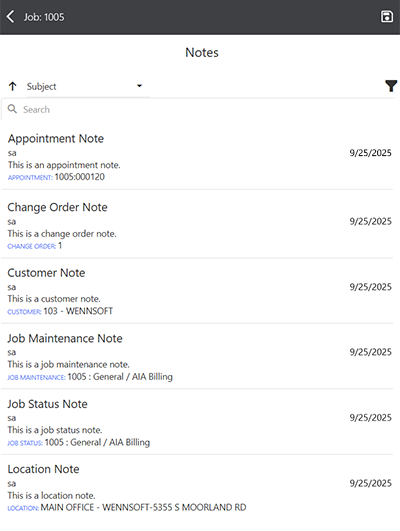
|
|
MT-2048 |
All notes related to a service call (and service appointment) are now visible from the Notes tab. See Notes. This includes the following related entities' notes:
Service Call Notes Screenshot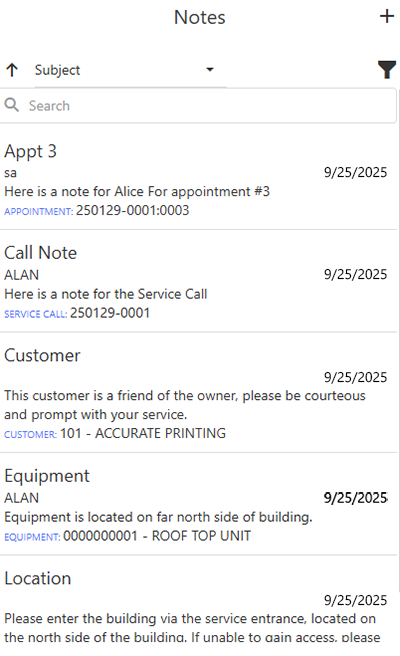
|
|
MT-2062 |
If you or another administrator forgets the MobileTech Integration User account password, you cannot retrieve the existing password, but you can change it. While the option is displayed to all users under Tools, only a SQL sysadmin can access this window. The password must meet the password policy requirements set up in Resco Cloud and for SQL users. For more information, please see Manage MobileTech Integration User. Please make sure to write down the new password. The connection strings are now encrypted in the configuration files, so the password cannot be viewed. MT-1845 |
|
MT-2179 |
The sync process has been optimized to reduce device synchronization time. |
|
MT-2241 |
We’ve updated the Load Data window to display additional error information. You will now see which technician batch has the error, the stored procedure (if applicable), and the error message. This information will only display on the parent sync. If any child syncs have errors, you will see “One or more errors occurred”.
ScreenshotsMultiple Child Sync Issues 
Prior Sync Issues 
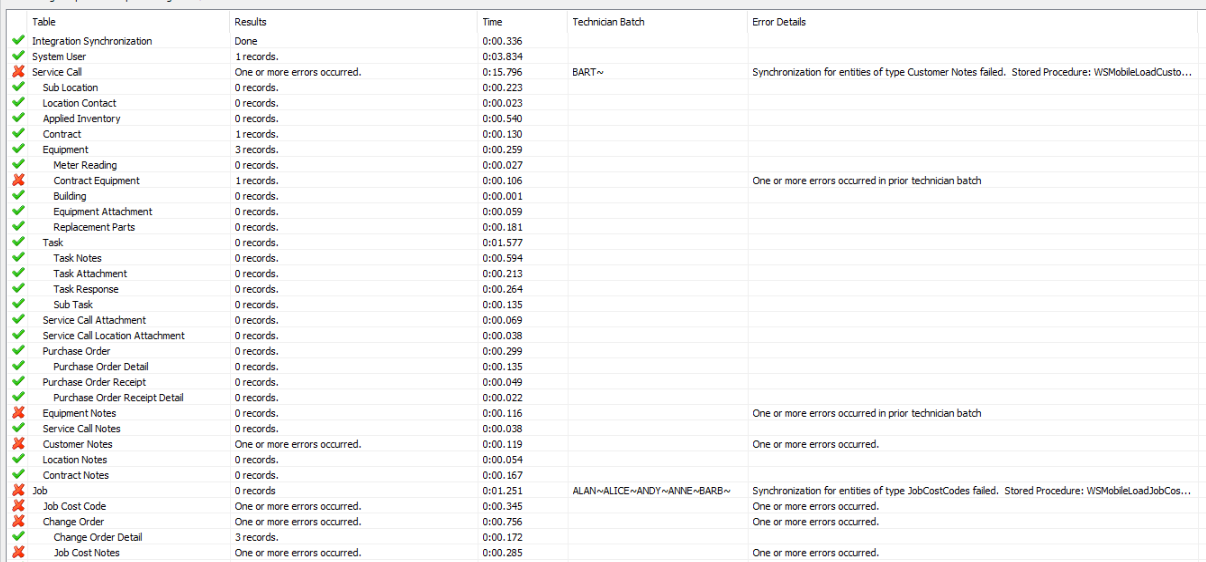
|
|
MT-2251 |
We’ve added the Job User Defined 1 and User Defined 2 fields (JC00107 table) to the MobileTech Woodford project. You can add these read-only fields to display if needed on jobs in MobileTech. |
|
MT-2258 |
The Consumed Inventory form now uses the same decimal places for the Quantity field that Signature does. This only applies to inventory items, with no changes to non-inventory items. You will need to refresh the Site Inventory lookup to view this change. In MobileTech Admin, select Tools > Refresh Lookups. Site Inventory is found under Employee > Technician Site. KNOWN RESCO DISPLAY ISSUE: On the Consumed Inventory and PO Line Item Forms, the quantity will always display with 2 decimal places (based on the entity’s metadata), but it will only let the user enter the correct number of decimal places. |
|
MT-2270 |
In MobileTech Admin, when adding or updating a technician, the technician’s email is automatically added in Schedule.
|
|
MT-2277 |
The existing IncludeAllCallNotesWithHistory setup option found in Company Specific Settings has been updated to default to True. Note that we are not changing the value for customers if you have already set the value. This option determines if all service call notes will be included when historical records are requested. The default value is True. The notes display on the History tab in the Other Notes section. For more information, see MobileTech Company-Specific Settings. |
|
MT-2278 |
We’ve added a cleanup step for job cost codes to clean up orphaned records. You will need to recreate the cleanup job to add this step. See Create a Cleanup Job for the Middle-Tier Database. |
|
MT-2298 |
The following new feature won’t be available until you upgrade to Signature 2025: Refrigerant tracking has been updated to comply with the American Innovation and Manufacturing (AIM) Act’s 2026 reporting requirements. The AIM Act brings major changes to refrigerant management. Businesses must meet new regulatory requirements for tracking, reporting, and leak detection by January 1, 2026. For more information, see Background on HFCs and the AIM Act | US EPA. We’ve added four new refrigerant equipment types:
We’ve removed the 6 - Mid-Size Appliance 5 to 50 pounds refrigerant tracking type from the drop-down selection as it is no longer exempt in 2026. Equipment records that are currently using this option are allowed to still use it. We’ve added an ALD Installed toggle on the equipment record that technicians can select to indicate that automatic leak detection has been installed on the equipment. |
Resco Releases and Inspections
|
Case # |
Description |
|---|---|
|
MT-2147 |
Additional new features from Resco's Winter 2025 Release:
|
|
MT-2265 |
Additional new features from Resco's Spring 2025 Release:
|
Important: Whitelist new Resco web services
Resco changing the infrastructure of their web services, most notably license checks. If you are using their solution in a protected enterprise environment and you previously whitelisted access to iservices.resco.net (or its IP address representation), you probably need to whitelist additional hosts/IP addresses.
They strongly suggest to allow additional hosts: svc.resco.net, svc-01.resco.net, svc-02.resco.net. See also the detailed information below.
This change can affect the following services:
-
Resco Mobile CRM license checks
-
Location tracking
-
Woodford license checks
-
Power Solutions license checks (Forms+, Steps+, Docs+)
-
Push notifications
Inbound communication
|
Old host |
New host |
IP address |
|---|---|---|
|
52.178.108.57, 52.174.189.28, 52.174.197.249, 52.174.184.182, 51.144.110.240, 40.91.197.7, 51.105.222.217, 51.105.223.23, 51.105.223.245, 51.124.144.104, 51.124.144.135, 51.124.144.234, 51.124.145.103, 51.124.146.134, 51.124.146.152, 51.124.146.186, 51.124.146.199, 51.124.147.1, 52.174.184.18 |
||
|
13.67.218.66, 23.101.119.168, 13.67.143.202, 104.43.212.51, 52.173.22.3, 168.61.210.239, 13.89.41.125, 20.221.38.166, 20.221.38.194, 20.221.38.247, 20.221.39.35, 20.221.39.146, 20.15.152.120, 20.15.152.213, 20.15.155.30, 20.15.155.64, 20.15.158.8, 20.15.158.67, 20.221.32.136, 13.89.172.6 |
Outbound communication
Blocking of outbound communication on the client side is relatively rare. Before this change, clients connected to physical servers; it was enough to add their inbound IP addresses:
|
Old host |
New host |
IP address |
|---|---|---|
|
52.174.184.18 |
||
|
13.89.172.6 |
||
|
- |
see below |
After the change, Resco Mobile CRM will no longer connect to the servers directly but instead go via a Front Door, svc.resco.net. If this fails, the app will try to connect directly to the servers, i.e., their IP addresses should remain allowed. It is necessary, however, to add the IP address of the Front Door. The Front Door infrastructure is managed by Microsoft. You can find the IP addresses using the Service Tag "AzureFrontDoor.Frontend". If you need assistance, contact Resco support.
Resco’s New Login Experience
Legacy Login Mode
When logging into the Resco’s new login experience (October 6, 2025 app update) users see a new login window. To continue using the regular login, select Legacy login mode at the bottom of the Login Setup window.
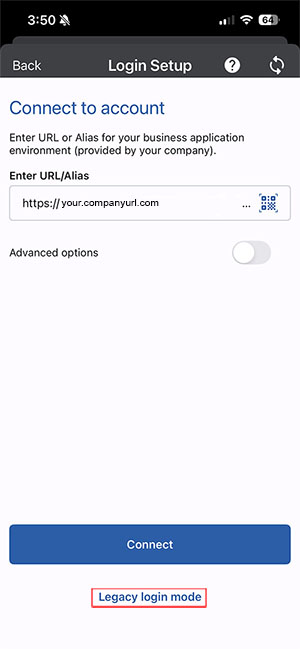
With this new login experience, if you have EventBasedSync = True, the app will just auto-sync. Users are no longer prompted with the login window.
Changing the CRM User Email Address
If you are logging into a device and need to change the CRM user login email address, you can do this by tapping the current email address.
-
In MobileTech, select Setup > Resco Setup.
-
Select the current user email address hyperlink.
-
Replace the email address in the User Name field with your email address.
-
Enter your Password.
-
Select the Sync icon.
Biometric Login
Unlock your Resco Mobile CRM using biometrics (if your device and company policy support the feature).
-
In MobileTech CRM, go to Setup.
-
Toggle User Fingerprint to On.
-
The next time you log in, you are prompted if you want to allow MobileCRM to use your fingerprint or Face ID to login. The option for fingerprint or Face ID is dependent on your device.
-
Select Don’t Allow or Allow.
