
If you have Global Filtering turned on in Signature, you can limit access to MobileTech+ by one or more technician teams and/or one or more branches. This allows you to create customized MobileTech+ reports for technician teams and branches in Signature. If you imported the MobileTech with MobileTech+ project, this feature defaults as enabled in the project. You will still need to refresh lookups, import the sync filters, and associate the templates as well as sync devices.
Refreshing Lookups
-
In MobileTech Administration, go to Tools > Refresh Lookups.
-
Scroll down to Employee, if you are restricting access by:
-
Technician team: Select Technician Team and Technician Team User.
-
Branch: Select Branch and Branch User.
-
Technician team or branch: Select Technician Team, Technician Team User, Branch, and Branch User.
-
-
Select Refresh.
Importing Sync Filters in the Woodford Project
If you decide to change how you are limiting access (for example, you decide to limit by branch instead of only technician team, etc.), you can import the appropriate sync filters without needing to remove the previous sync filters.
The sync filters for Technician Team and Branch are set up to display the template on devices that have either the technician team or the branch that is associated with the template. (See Associate MobileTech+ Templates below.) If you require that the access be limited to a technician team and branch, you will need to change the operand on the sync filter(s) that you import for the technician team and branch.
Change the highlighted operand to "AND" to require the technician to have both the team and branch be assigned in Signature for the associated team and branch on the template to display on their device. This operand needs to be changed on all the technician team and branch sync filters that you've imported.
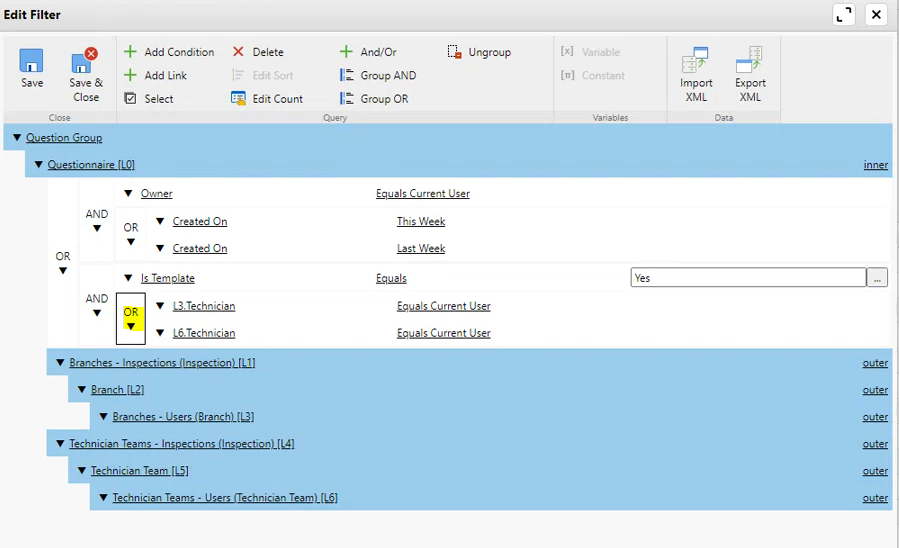
To import the Sync Filter:
-
In MobileTech Administration, select Tools > Launch Resco Cloud Dashboard.
-
Enter the Email and Password and select Log in.
-
In the left navigation, select Woodford.
-
Open the MobileTech with MobileTech+ project.
-
Under Entities in the left navigation, scroll to and select MobileTech+.
-
From the menu bar, select Sync Filter.
-
In the Edit filter window, select Import XML.
-
Navigate to Signature/MobileTech/Admin/MobileTechPlus/Filters/ and select the appropriate sync filter:
-
Technician Team: filter-Technician Team
-
Branch: filter-Branch
-
Technician Team and Branch: filter-Technician Team and Branch
-
-
Select Open.
-
Select Save & Close.
-
Publish the project.
Associating MobileTech+ Templates
-
In MobileTech Administration, select Tools > Launch Resco Cloud Dashboard.
-
Enter the Email and Password and select Log in.
-
Open the Template Designer.
-
Select the MobileTech+ template and select Associate from the menu bar.
-
Select Add. (You can remove an associated entity by selecting the entity and then selecting Remove.)
-
Select the appropriate entity from the drop-down.
-
branch_inspection
-
technicianteam_inspection
-
-
Select the team or branch.
-
Select OK in the Select Entity window.
-
Repeat steps 5 - 8 to associate additional entities to the template.
-
Select OK.
Syncing Devices
The final step is to sync devices to restrict the MobileTech+ templates that display.
Setting Up MobileTech+ Synchronization and Enabling Technician Team and/or Branch
If you have imported the MobileTech with MobileTech+ project, you do not need to perform any of the following steps as these are already set up. The instructions are provided if you have manually enabled MobileTech+ on the other non-MobileTech+ project available in the C:\Program Files (x86)\Signature\MobileTech\Admin\Woodford folder. After you've completed the following, you will also need to complete the steps above that include refreshing lookups, importing sync filters, associating templates, and syncing devices.
Setting Up MobileTech+ Synchronization
-
In MobileTech Administration, select Tools > Launch Resco Cloud Dashboard.
-
Enter the Email and Password and select Log in.
-
In the left navigation, select Woodford.
-
Open the MobileTech with MobileTech+ project.
-
Under Entities in the left navigation, scroll to and select MobileTech+.
-
Select the Synchronization drop-down and select Always Full Sync.
-
Select the Incremental Linked SyncFilter drop-down and select Enable.
-
From the menu bar, select Save.
Enabling Technician Team and/or Branch
If you are only limiting access by a technician team or branch, you will only need to enable the respective entity. If you will be limiting access by both the technician team and branch, enable both entities.
Enable Technician Team - MobileTech+
-
In MobileTech Administration, select Tools > Launch Resco Cloud Dashboard.
-
Enter the Email and Password and select Log in.
-
In the left navigation, select Woodford.
-
Open the MobileTech with MobileTech+ project.
-
Under Entity in the left navigation, scroll to and select Technician Team - Inspection.
-
From the menu bar, select Enable.
-
Select the Synchronization drop-down and select Always Full Sync.
-
Select the Incremental Linked SyncFilter drop-down and select Enable.
-
From the menu bar, select Save.
Enable Branch - MobileTech+
-
In MobileTech Administration, select Tools > Launch Resco Cloud Dashboard.
-
Enter the Email and Password and select Log in.
-
In the left navigation, select Woodford.
-
Open the MobileTech with MobileTech+ project.
-
Under Entity in the left navigation, scroll to and select Branch - MobileTech+.
-
From the menu bar, select Enable.
-
Select the Synchronization drop-down and select Always Full Sync.
-
Select the Incremental Linked SyncFilter drop-down and select Enable.
-
From the menu bar, select Save.