Your customer can send an email that is sent to the accesskey@servicerequests.io email address OR to an email address that our user has set up (service@company.com) that forwards the email to the access key email address.
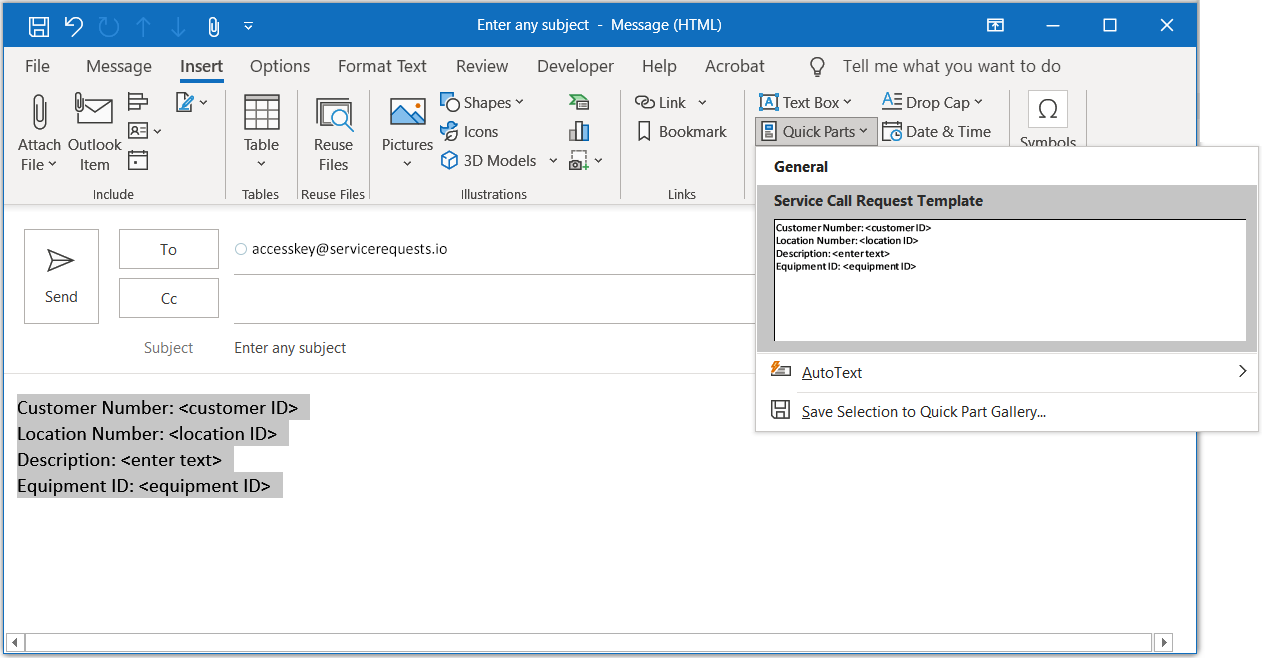
In Outlook the body text can be added to a Quick Part template gallery to quickly insert the information into a new email. The customer would then only have to enter a subject line and the description after inserting the Quick Part. See Working with Quick Part Templates below.
-
Your customer opens their email program and opens a new message.
-
The customer enters the:
-
Email Address
-
Email Subject
-
Email body that follows the template as determined by the user in the Event Trigger Properties.
-
-
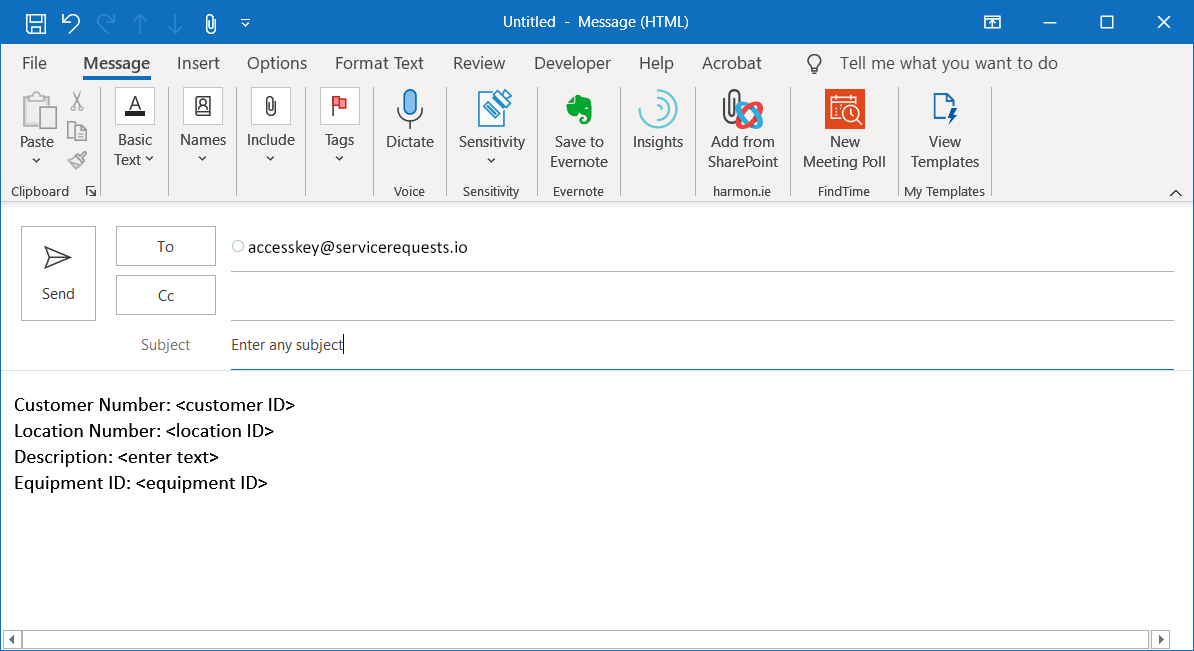
The following lines including the colon ":" in the body of the email are required to generate a service email. Additional fields may be added, like "Equipment ID:".
-
Customer Number: <Actual customer number in Signature>
-
Location Number: <Actual location ID in Signature>
-
Description: <Used in service call description>
-
Example Email
Example of an email with the optional line for Equipment ID:
Working with Microsoft Outlook Quick Part Templates
Adding a Quick Part Template in Microsoft Outlook
If you are using Microsoft Outlook email, you can have your customers create a Quick Part.
-
Open a new message window (as if to send a new email).
-
Type and then select the text to be added as a Quick Part.
-
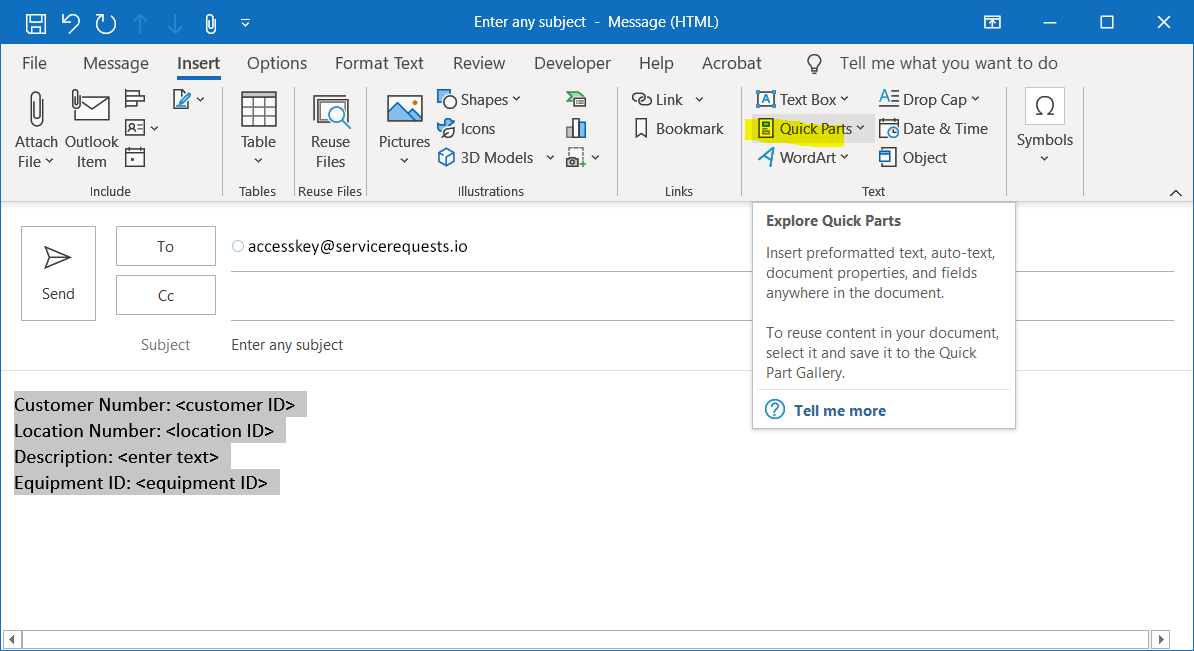
On the Insert tab, locate the Text section. (The Insert tab is only visible in a new email. The Text section is only enabled if you click in the body of the new email.)
-
Select Quick Parts.
-
Select Save Selection to Quick Part Gallery…
-
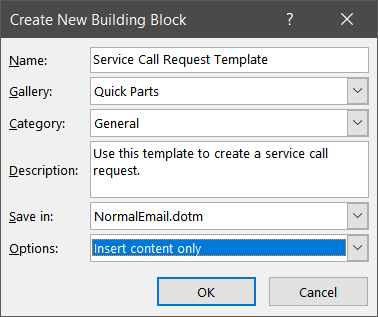
In the Create New Building Block window, you can name the Quick Part and enter a description.
-
Name: Enter a descriptive name.
-
Description: Enter a brief description.
-
-
Select OK.
Using a Quick Part Template
-
Open a new message window (as if to send a new email).
-
On the Insert tab, locate the Text section.
-
Select Quick Parts.
-
Select the appropriate template.
-
The body of the email is populated with the text.
-
Edit the text as needed.