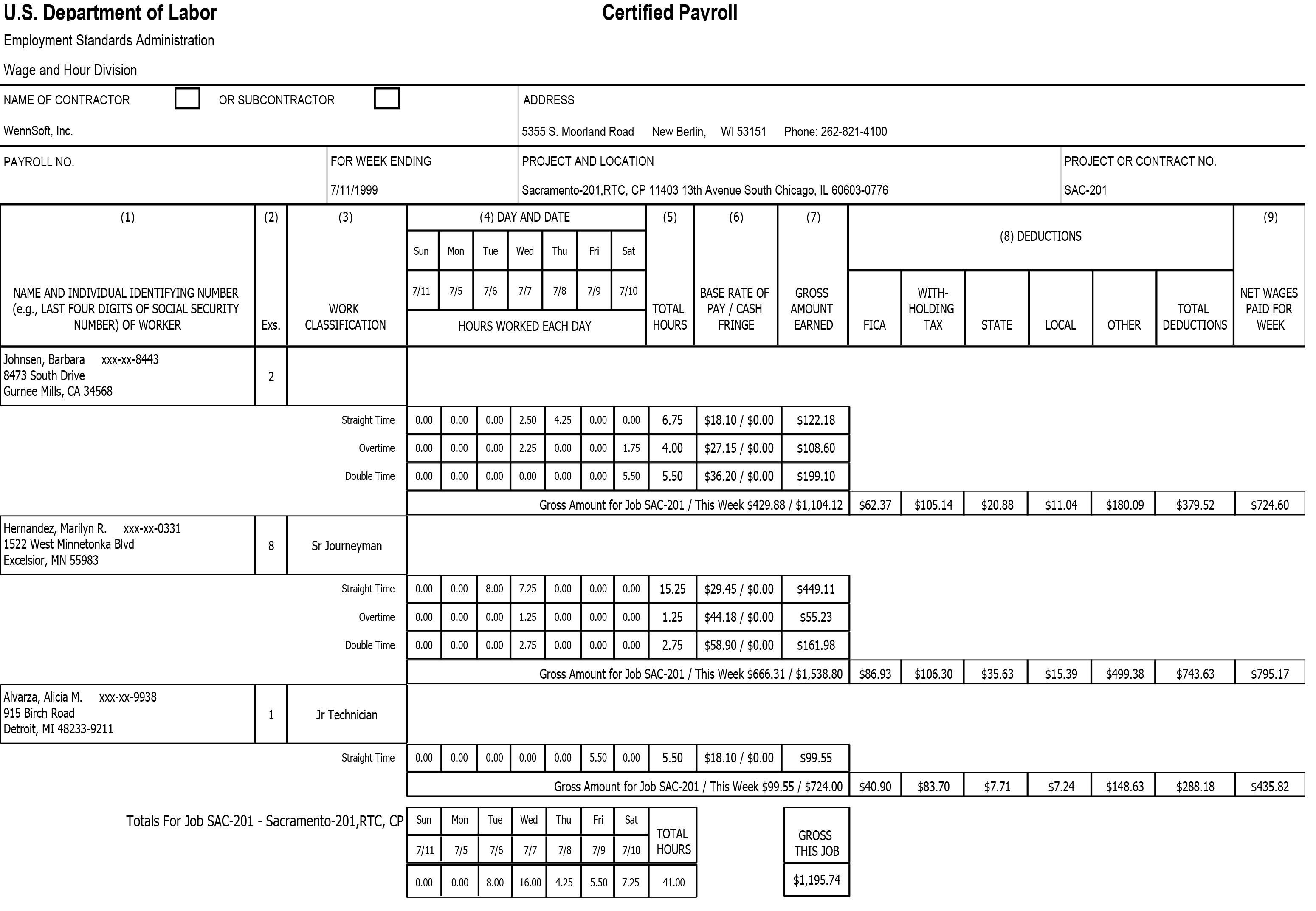
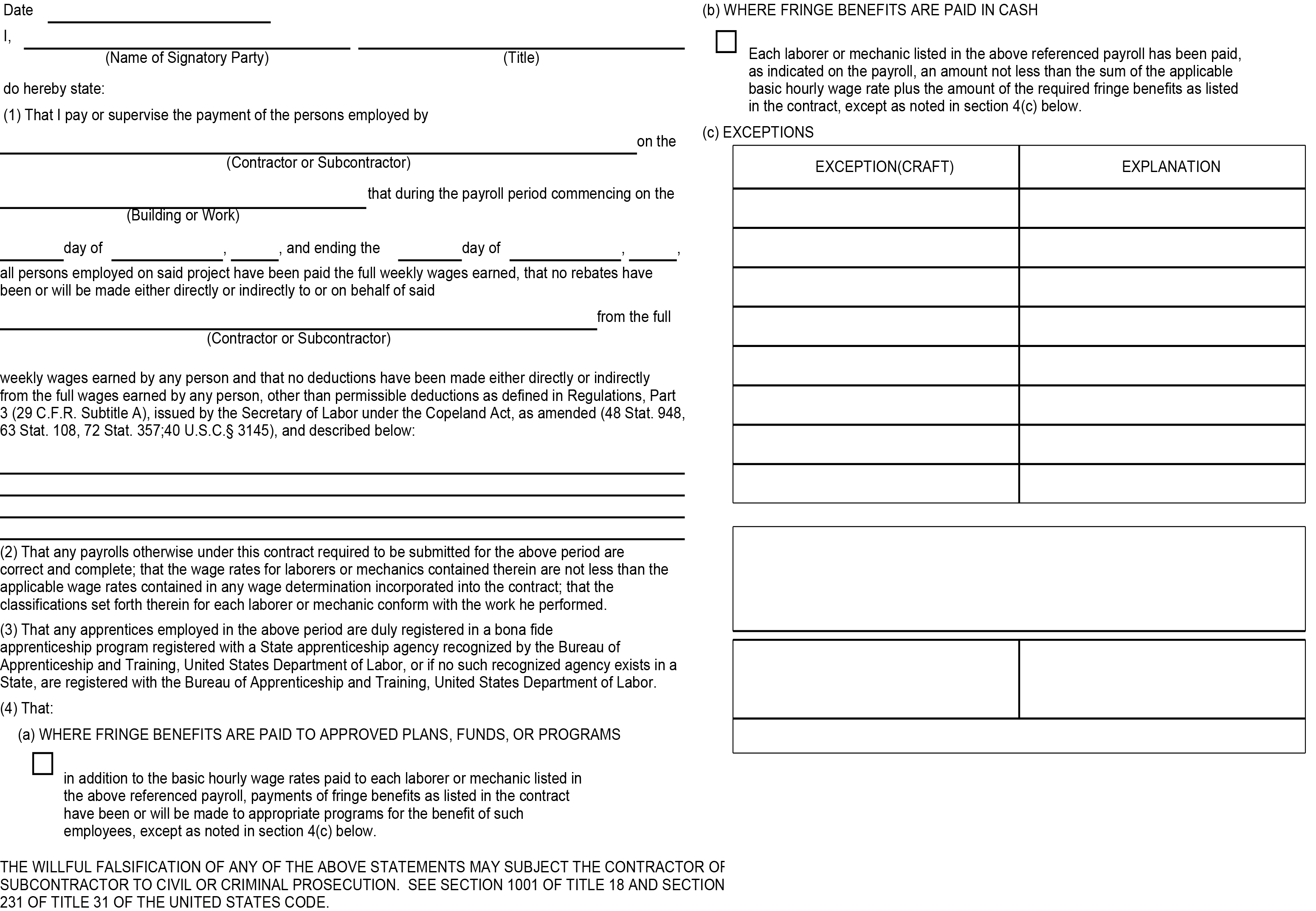
The Certified Payroll report lists employee information, details of hours worked, hourly rate, gross earned in job, deductions, and net weekly pay for the selected jobs and service calls. To print accurate certified payroll reports, you must print your payroll checks using the Microsoft Dynamics GP Payroll module. IMPORTANT: Certified Payroll transactions for Service must be run through TimeTrack. TimeTrack history should always be turned on. Using Dynamics GP Payroll for Service transactions will NOT include any Certified payroll functionality.
Some features include:
-
Cash fringe is broken out separately, making it easier to locate
-
Can select to include service calls (Service Management required)
-
Prints the statement of compliance page of the report
-
Prints totals by job or service call
-
Prints header information, such as address, contractor name, and week-ending date, eliminating the need for a cover page.
Certified Payroll Setup Options
-
TimeTrack: In TimeTrack Setup Options, you must mark Maintain History. See Using TimeTrack History.
-
Job Cost:
-
In Job Cost Posting Options, mark Certified Payroll in the Payroll Section. See Choosing Posting Options. Marking this checkbox enables the Certified Payroll checkbox on the Job Maintenance window. See Creating a Job Record.
-
-
Service Management: In Invoice Setup Options, mark Certified Payroll in the Payroll Posting Options section. See Choosing Posting Options. Marking this checkbox enables the Certified Payroll checkbox on the Location and Service Call windows. See Working With Location Records and Creating Service Calls With One Appointment.
Notes for Service Management Certified Payroll
-
IMPORTANT: Certified Payroll transactions for Service must be run through TimeTrack. TimeTrack history should always be turned on. Using Dynamics GP Payroll for Service transactions will NOT include any Certified payroll functionality.
-
The Maintenance Contract window does not have the Certified Payroll checkbox, but if the location has Certified Payroll marked, and you have a contract at that location, the creation of PM Tasking (Service Calls) from the contract will take the location flag when creating the calls.
-
Service calls created in Schedule and MobileTech will take the location flag when creating the calls.
-
WS Utilities Import feature for service calls is NOT updated to create the calls from the import. You will have to go to the calls you want Certified and mark them manually.
-
WS Integration Manager (SmartConnect imports) and its Service Call import was NOT updated to include the Certified flag. However, if the location has the Certified Marked, then the imported call will have it also marked.
Printing the Certified Payroll Report
-
In Job Cost, you can run this report from Reports > Job Cost > Labor Reports > Certified Payroll.
-
In Service Management, you must run this report using the SRS Report Manager. When printing the Certified Payroll report, use the Start Service Call and End Service Call filters to select the service calls to be included in the report.
Certified Payroll Report
The report below shows the Job Cost version. The Service Management version has some of the labels updated for service calls, etc.