Legacy Login Mode
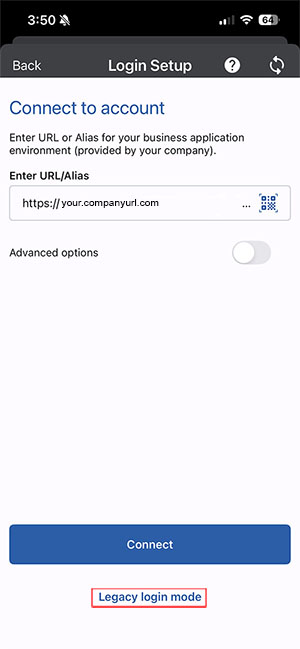
When logging into the Resco’s new login experience (October 6, 2025 app update) users see a new login window. To continue using the regular login, select Legacy login mode at the bottom of the Login Setup window.
Changing the CRM User Email Address
If you are logging into a device and need to change the CRM user login email address, you can do this by tapping the current email address.
-
In MobileTech, select Setup > Resco Setup.
-
Select the current user email address hyperlink.
-
Replace the email address in the User Name field with your email address.
-
Enter your Password.
-
Select the Sync icon.
Biometric Login
Unlock your Resco Mobile CRM using biometrics (if your device and company policy support the feature).
-
In MobileTech CRM, go to Setup.
-
Toggle User Fingerprint to On.
-
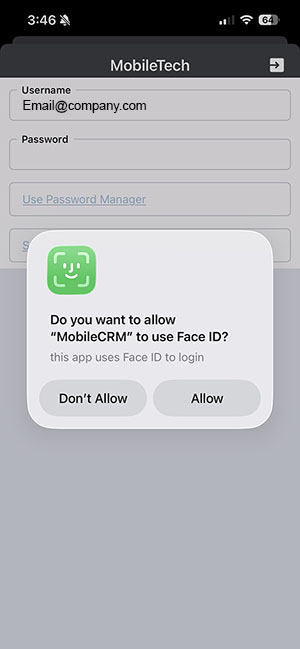
The next time you log in, you are prompted if you want to allow MobileCRM to use your fingerprint or Face ID to login. The option for fingerprint or Face ID is dependent on your device.
-
Select Don’t Allow or Allow.